Discount vouchers and promo codes
Creating discount vouchers and promo codes is a process that depends on your specific situation. Regardless of the situation, you always start by adding a discount voucher through the management interface.
Add a Discount Voucher
To get started, navigate to the management interface of your Afosto account.

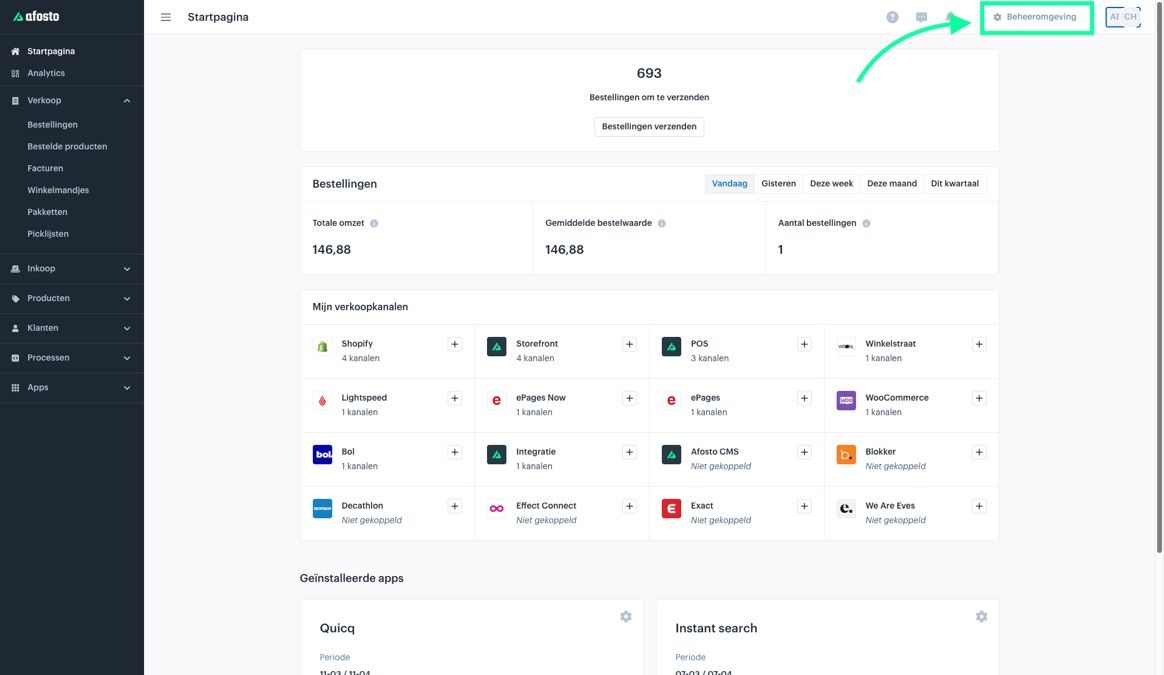
In the management interface, click on 'Orders' and then on 'Coupons'. Here, choose 'Add', after which a menu will open where you can configure your discount voucher.

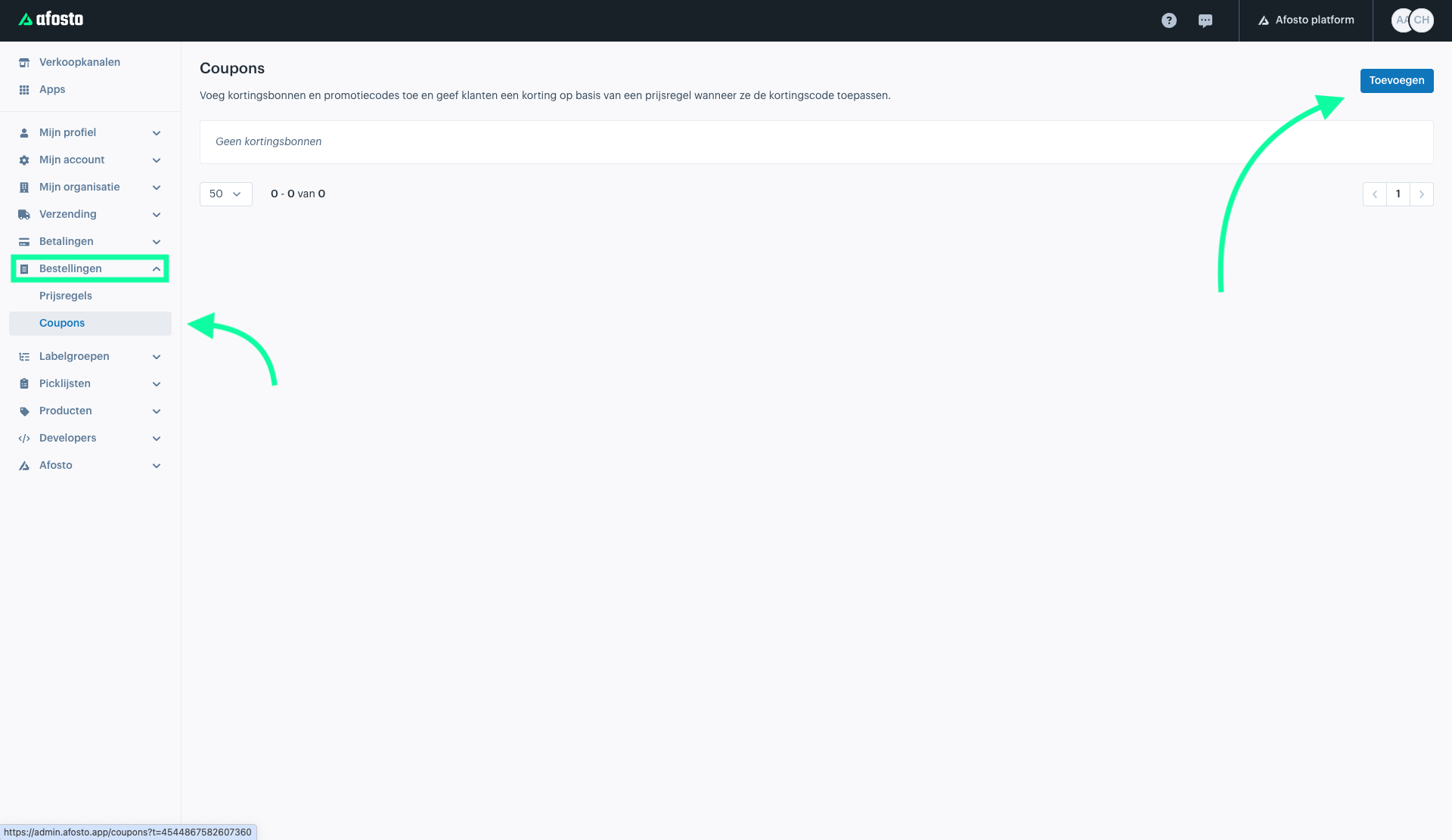
Give your discount voucher a name that is easy to recognize.
Specify the validity period, which can be in days, weeks, a specific date, or unlimited.

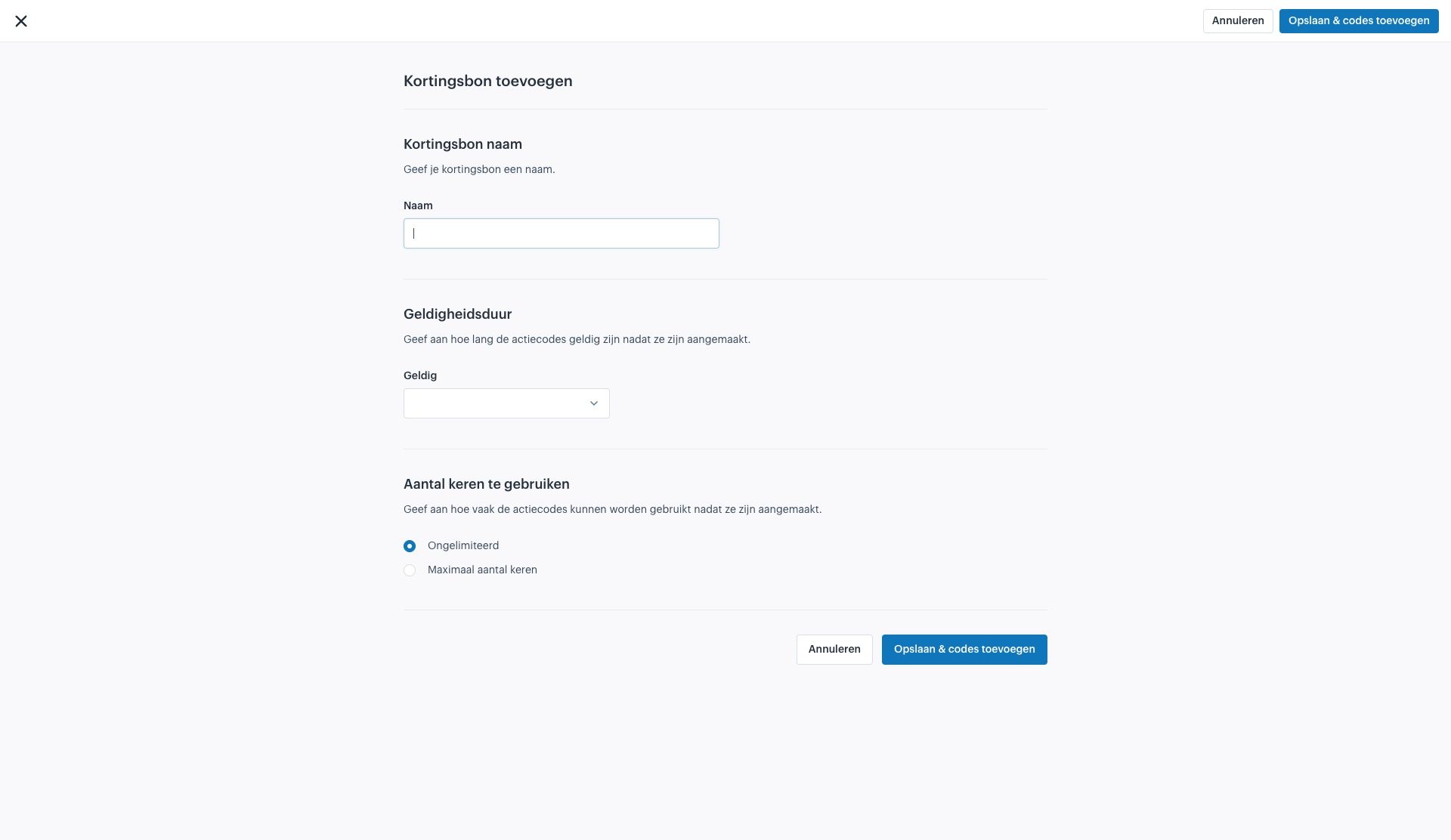
The start date of the discount voucher is the date on which you create the voucher.
Additionally, you can also set how many times the discount voucher can be used, for example, 'Unlimited' for a newsletter discount or 'Maximum number of times' for, for example, the first 20 orders.

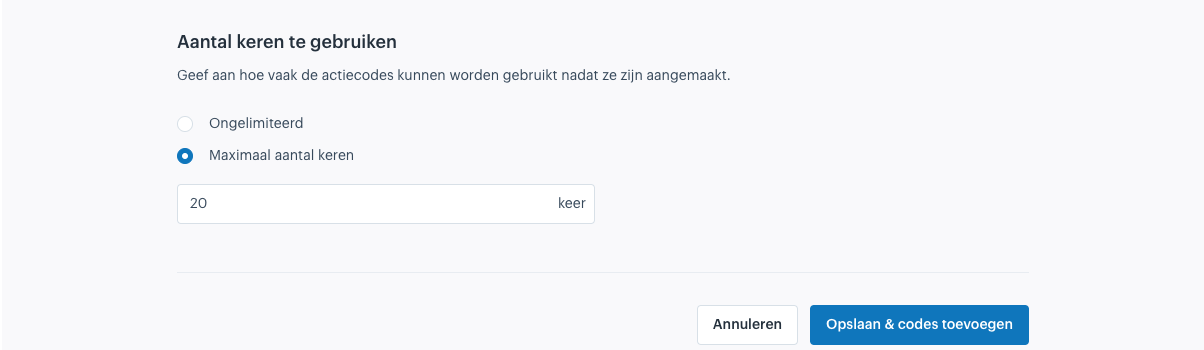
After configuring the basic settings, click on 'Save & Add Codes'.
Add Codes
In the next window, you will see an overview of all your discount vouchers. Here, you have the option to manually add codes or generate codes.
You do this by clicking on your discount voucher and navigating to 'Manage Codes'.

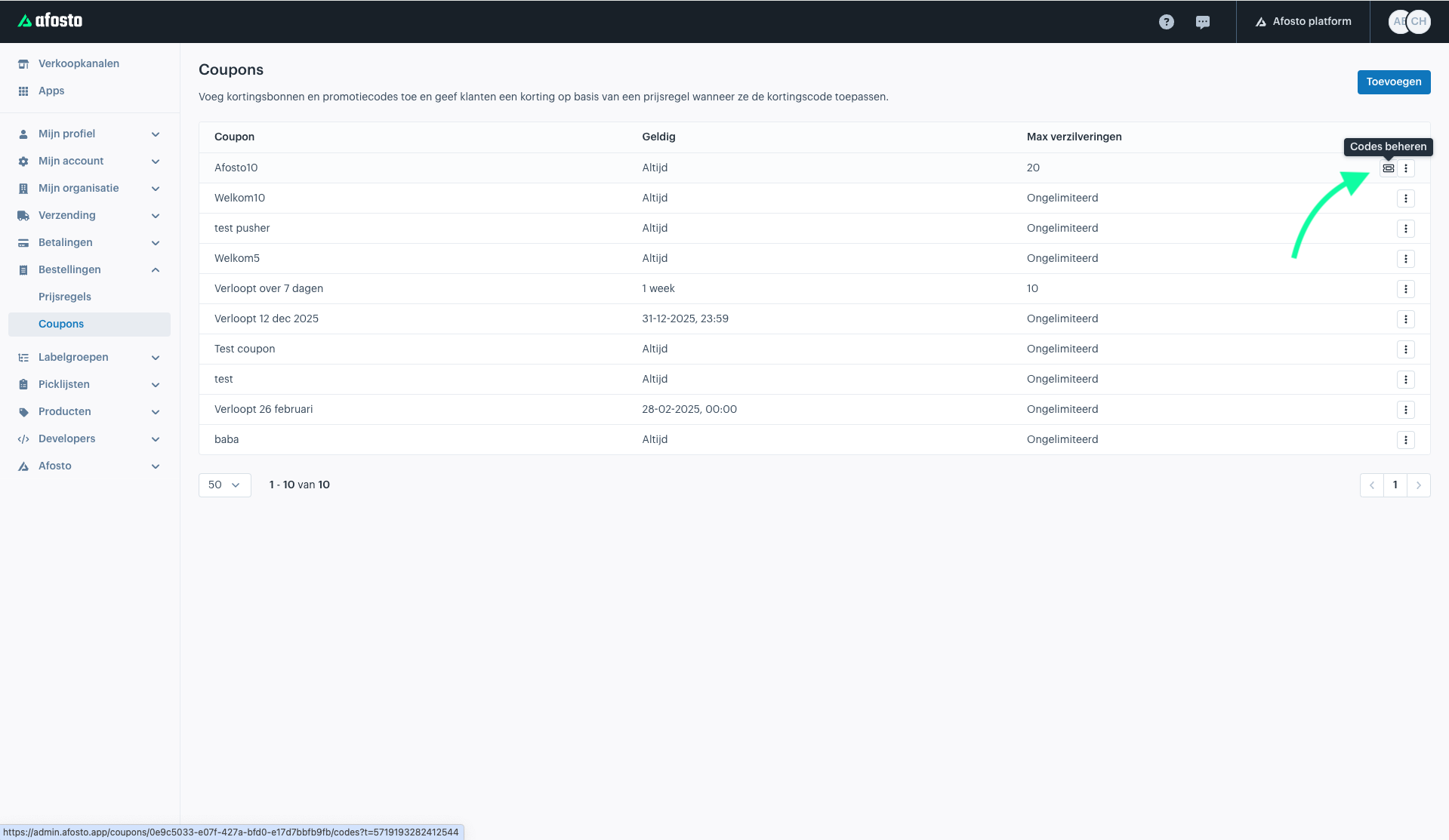
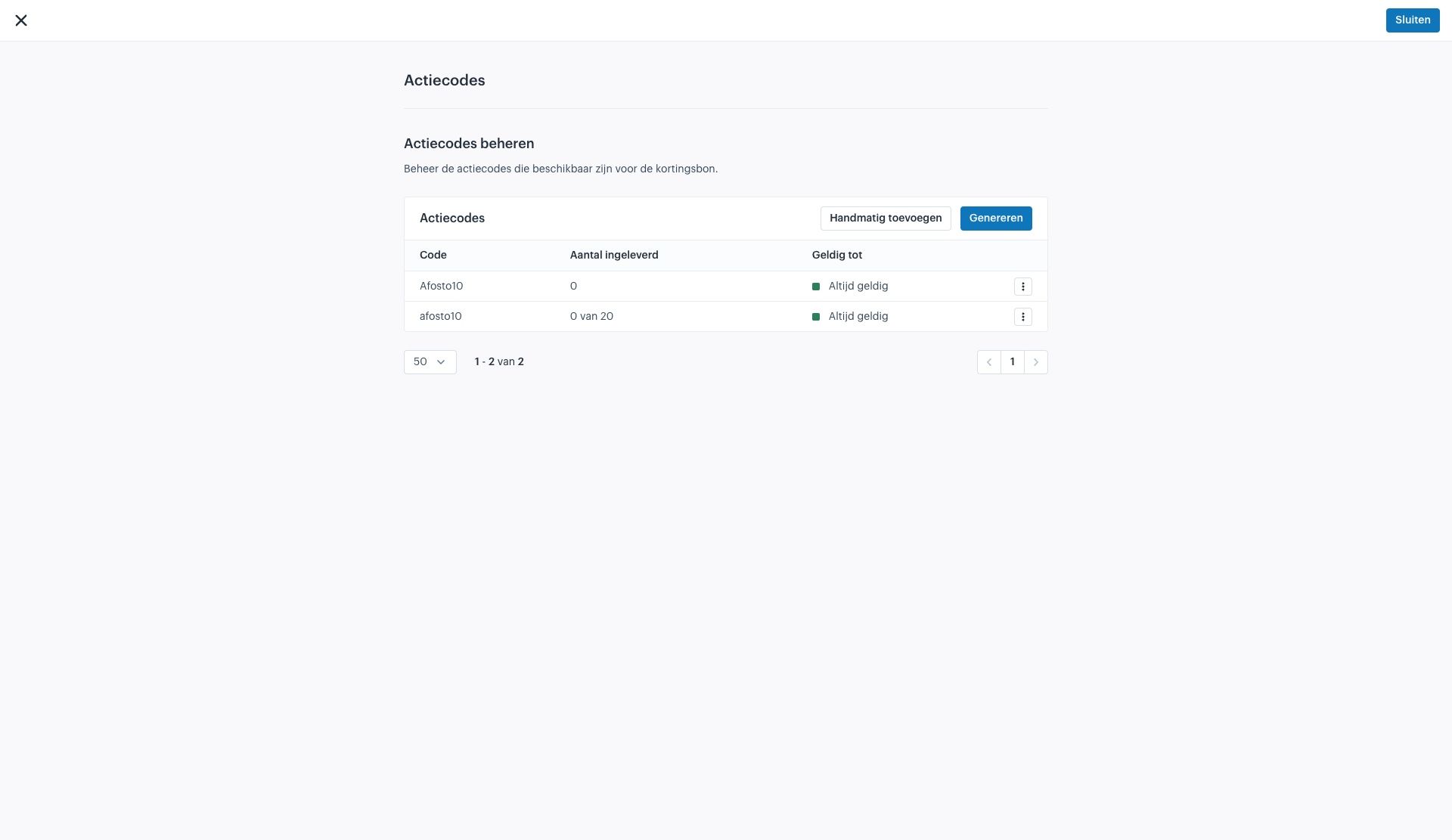
When manually adding, you can enter unique codes, such as 'Afosto10'. It is useful to use both uppercase and lowercase letters, for example 'Afosto10' and 'afosto10', to prevent customers from making mistakes when entering the code.
It should look like this:
If you choose to generate codes, you can specify how many codes you want to create and optionally add a prefix, such as your company name. This results in unique codes, for example, for the first 20 newsletter sign-ups.
It should look like this:
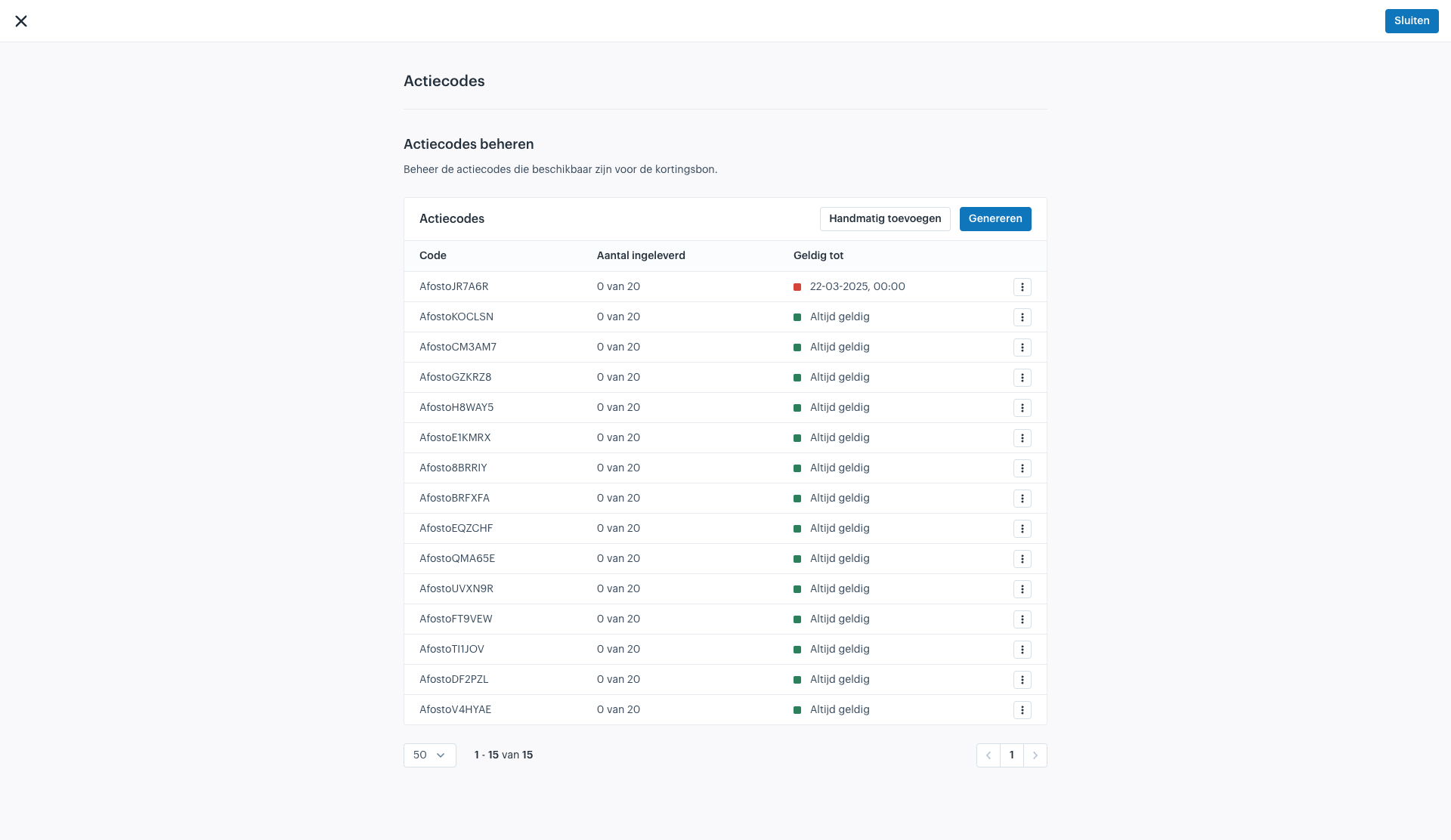
The codes are saved automatically, so you can now click 'Close'.
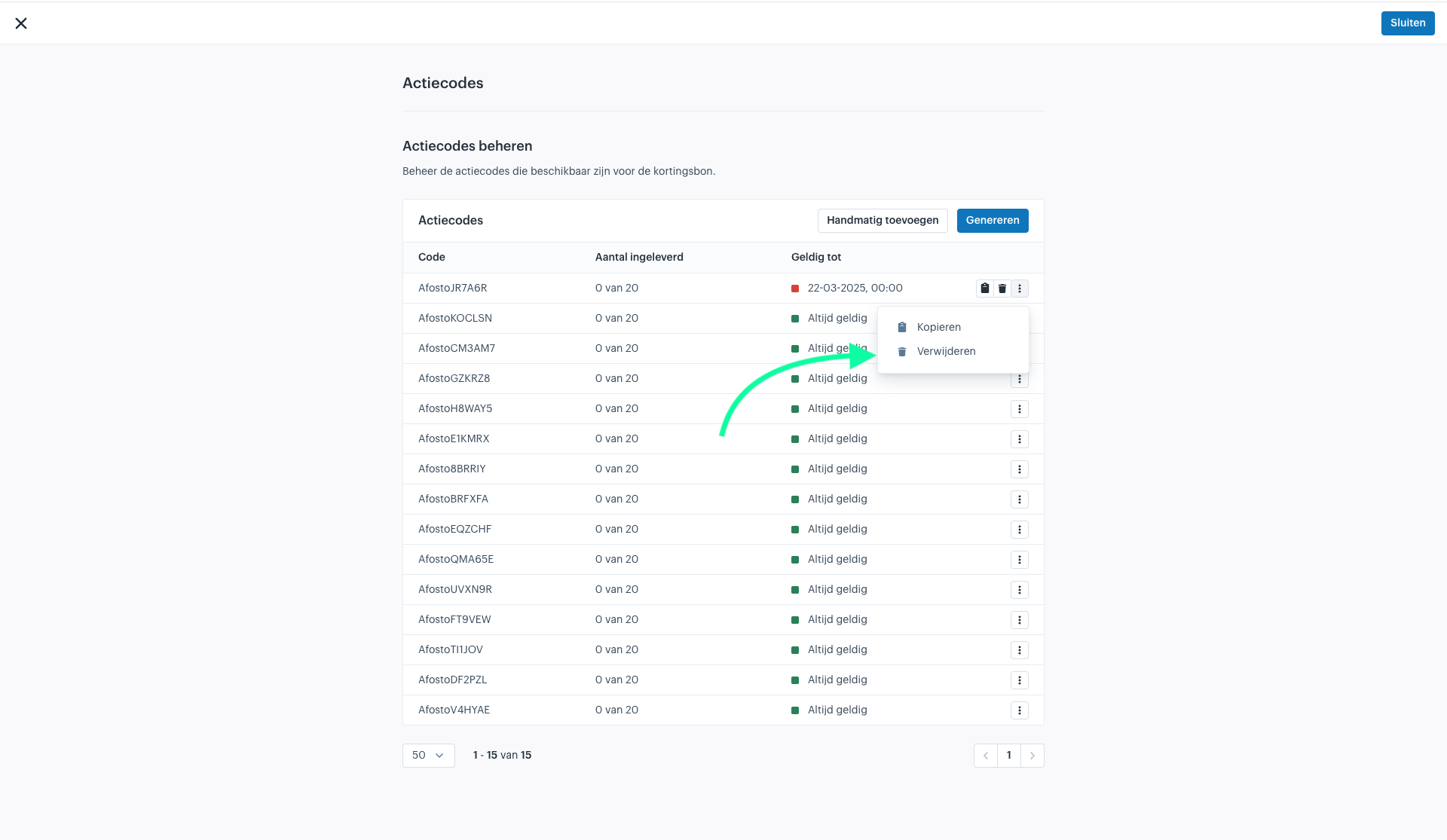
To delete the codes, click on the three dots on the right and then select 'Delete'.

Set Up Pricing Rules
To add the discount percentage or amount to the order, you need to set up a pricing rule that is activated when a specific promotion or code is used. Follow the guide below to do this.